Материал: Панель АСКВ2 7016480

Configuration • Service pages
User
Default setting: EMPTY (no username entered)
For access with authentication, a username must be entered here.
Password
Default setting: EMPTY (no password entered)
Entry range: Max. 100 characters
For access with authentication, a password must be entered here.
The password is stored in configuration file PPT50Config.xml on the device.
Show password
Default setting: Disabled
Enabled |
The password is shown in the entry field as plain text. |
Disabled |
The password is hidden in the entry field using placeholder characters (●●●●●●). |
Power Panel T50 User's manual V1.22 - Translation of the original documentation |
71 |
Configuration • Service pages
5.1.15 Service page Save & Exit
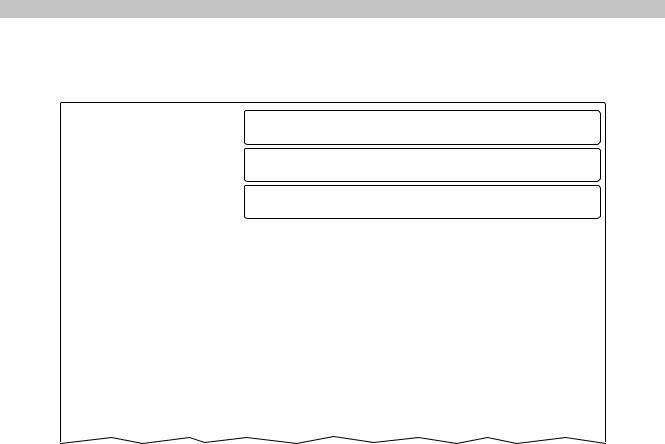
On this page, the settings currently made or modified on service pages can be saved using Save. Exit leaves the service pages, and the Power Panel starts in the configured start mode (see "Service page Startup" on page 49).
Startup |
Save changes & exit |
|
|
||
Network |
Press to save changes and exit |
|
|
|
|
Time |
Save changes |
|
|
Press to save changes |
|
Screen |
||
|
||
|
Exit without saving |
|
Audio |
||
|
Press to exit without saving changes |
|
Gesture |
|
|
|
|
|
VNC |
|
|
|
|
|
Web |
|
|
|
|
|
Storage |
|
|
|
|
|
Update |
|
|
|
|
|
Backup & Reset |
|
|
|
|
|
Security |
|
|
|
|
|
OPC UA |
|
|
|
|
|
Save & Exit |
|
|
About & Info |
|
|
|
|
Save changes & exit (Button)
All changes that have been made are saved and the Power Panel is started with the specified settings (see "Service page Startup" on page 49)
Save changes (Button)
All changes made are saved. The service pages are not exited, and other settings can be made.
Exit without saving (Button)
Changes made are not saved and will be lost. The Power Panel starts as configured with the last settings that were saved (see "Service page Startup" on page 49).
72 |
Power Panel T50 User's manual V1.22 - Translation of the original documentation |

Configuration • Service pages
5.1.16 Service page About & Info
Startup |
System time |
|
|
||
Network |
16:58:37 |
|
|
|
|
Time |
System date |
|
|
2018-07-24 |
|
Screen |
||
|
||
|
Model number |
|
Audio |
||
|
6PPT50.101E-16B |
|
Gesture |
Serial number |
|
|
||
VNC |
||
F0123456789 |
||
Web |
Hardware revision |
|
|
||
Storage |
C0 |
|
|
|
|
Update |
MAC address |
|
|
01:23:45:67:89:ab |
|
Backup & Reset |
||
|
||
|
IP address |
|
Security |
||
|
123.45.67.89 |
|
OPC UA |
Image version |
|
|
||
Save & Exit |
||
1.2.0 |
||
About & Info |
Signed image |
|
|
Yes |
|
|
Bootloader version |
|
|
rc3 |
|
|
Show license |
|
|
Press to show license |
The following information about the Power Panel is displayed on this service page:
System time |
Current time |
|
Model number |
Device number/model number/order number |
|
Serial number |
Serial number of the device |
|
Hardware revision |
Hardware revision |
|
MAC address |
MAC address of the network interface |
|
IP address |
IP address currently being used in the network |
|
Image version |
Version number of the PPT system (PPT image) |
|
Signed image |
Information about whether a signed or unsigned image is installed on the Power Panel: |
|
|
Yes |
A signed image is installed. |
|
No |
An unsigned image is installed. |
|
Not supported |
The Power Panel does not support signed images. |
|
|
In other words, the signature is not checked. |
Bootloader version |
Version number of the boot loader |
|
Show license (Button)
Accessing this function displays the licenses of the software components used on the Power Panel.
Power Panel T50 User's manual V1.22 - Translation of the original documentation |
73 |
Configuration • Update
5.2 Update
When updating the Power Panel with a USB flash drive, it is important to note that the drive must have a capacity of at least 256 MB. In addition, an industrial-grade USB flash drive must be used (see "Data storage devices" on page 110).
5.2.1 Updating with Automation Studio and a USB flash drive
Automation Studio
1 |
2 |
3 |
Upgrade PPT Image in Automation Studio |
|
4
USB memory
5 Power Panel
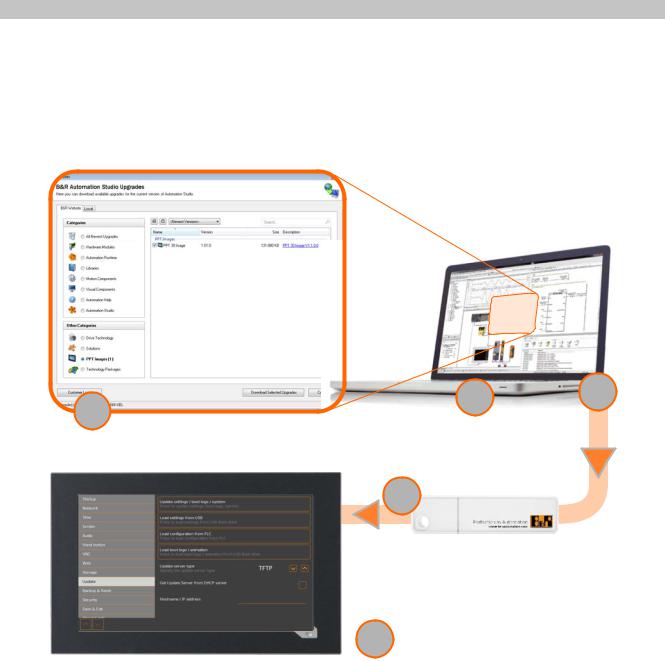
1.The PPT image for the Power Panel is updated in Automation Studio (upgrade).
2.Configuring the Power Panel according to requirements in Automation Studio.
3.Insert a USB flash drive in your computer and select the following menu item in Automation Studio:
°Project / Project installation / Generate project installation package
In the following selection dialog box, it is necessary to select the appropriate equipment (Power Panel). After confirming the selection, the target medium (connected USB flash drive) is selected and the process is started using the button [Download to application memory].
The USB flash drive is reformatted and the following data is copied to the root directory:
°PPT50Image.img.gz
°PPT50Image.md5
°PPT50Image.img.gz.sig
°PPT50Config.xml
°PPTLogo.bmp.gz
°PPTLogoA.gif
Depending on the configuration, files PPTLogo.bmp.gz or PPTLogoA.gif may not be included. 4. Connect the USB flash drive to the Power Panel.
74 |
Power Panel T50 User's manual V1.22 - Translation of the original documentation |

Configuration • Update
5.On service page Update, select one of the following functions depending on what should be updated (see section "Service page Update" on page 64):
°Update settings / boot logo / system
°Load settings from USB
°Load boot logo / animation
5.2.2 Updating with a file downloaded from website and a USB flash drive
Updated versions of the PPT operating system are made available on the B&R website in the form of an upgrade package that includes a PPT image. To update the PPT system using an upgrade package from the B&R website, the following steps must be carried out.
1.The Power Panel T-Series upgrade package must be downloaded from the B&R website. This upgrade package can be found and various locations on the website:
°Directly on the product page (it is possible to search for the model number) in section "PPT upgrades" under tab "Downloads".
°On the download page under Software > Automation Studio > Automation Studio 4.3 (or later version) in section "PPT upgrades".
Download the upgrade package in ZIP format (not EXE format)!
2.Unzip the ZIP file with the corresponding content directly into the root directory of a USB flash drive:
°PPT50Image.img.gz
°PPT50Image.md5
°PPT50Image.img.gz.sig
°Readme.txt
3.Connect the USB flash drive to the Power Panel.
4.On service page Update, select function Update settings / boot logo / system (see section "Service page Update" on page 64).
5.2.3 Duplicating an existing setup using a USB flash drive
It is possible to save the Power Panel system, system settings, boot logo and boot animation on a USB flash drive and cope the entire setup or portions of the setup to a different Power Panel.
To do so, the following steps must be carried out
1.Connect a USB flash drive to the Power Panel with the configuration that should be copied.
2.On service page Backup & Reset, the available functions can be used to back up the entire system or just portions of it (configuration, boot logo, boot animation) on a USB flash drive (see "Service page Backup & Reset" on page 68).
3.Then connect the USB flash drive to another Power Panel.
4.On service page Backup & Reset, the available functions can be used to update the Power Panel using entire system (or portions of it) that have been backed up (see section "Service page Update" on page 64).
The PPT system (PPT image) can be used to update any Power Panel. The boot logo and configuration (settings), on the other hand, can only be used on the same devices.
Power Panel T50 User's manual V1.22 - Translation of the original documentation |
75 |