Материал: Панель АСКВ2 7016480

Configuration • Service pages
Virtual keyboard
Default setting: Enabled
Enabled |
The virtual keyboard is automatically shown on the screen if a text input field in the web browser has |
|
the focus (see "Keyboard" on page 43). |
Disabled |
The virtual keyboard for the web page is automatically shown if a text input field in the web browser |
|
has the focus. This functionality must be made available by the web server. |
Entries can also be made at any time using a connected USB keyboard.
Information:
The virtual keyboard is created by the Power Panel system. If the web application (e.g. mapp View) contains its own on-screen keyboard, the virtual keyboard of the Power Panel should be disabled.
Power Panel T50 User's manual V1.22 - Translation of the original documentation |
61 |
Configuration • Service pages
5.1.10 Service page Storage
On this service page, Power Panel memory can be shared to allow access from the network. The following memory areas can be shared for network access:
•Connected USB data storage devices
•Internal user memory
Sharing takes place using the CIFS protocol (Common Internet File System). In this case, the Power Panel functions as a server and makes resources (a memory area) available to a client in the network using an access mechanism. CIFS uses a user, password and memory for authentication.
The client will require the following information to access the memory area shared on Power Panel:
CIFS user |
The CIFS user cannot be configured. "ppts50-user" must always be used as the CIFS user. |
|
CIFS password |
The password configured on this service page password is used. |
|
CIFS memory location |
The following names can be used to specify the memory location: |
|
|
Name |
Description |
|
usbshare |
USB memory connected to USB interface IF3. |
|
usbshare2 |
USB memory connected to USB interface IF4. |
|
usershare |
Internal user memory (flash) on the Power Panel. |
The USB memory must be formatted using the FAT32 file system.
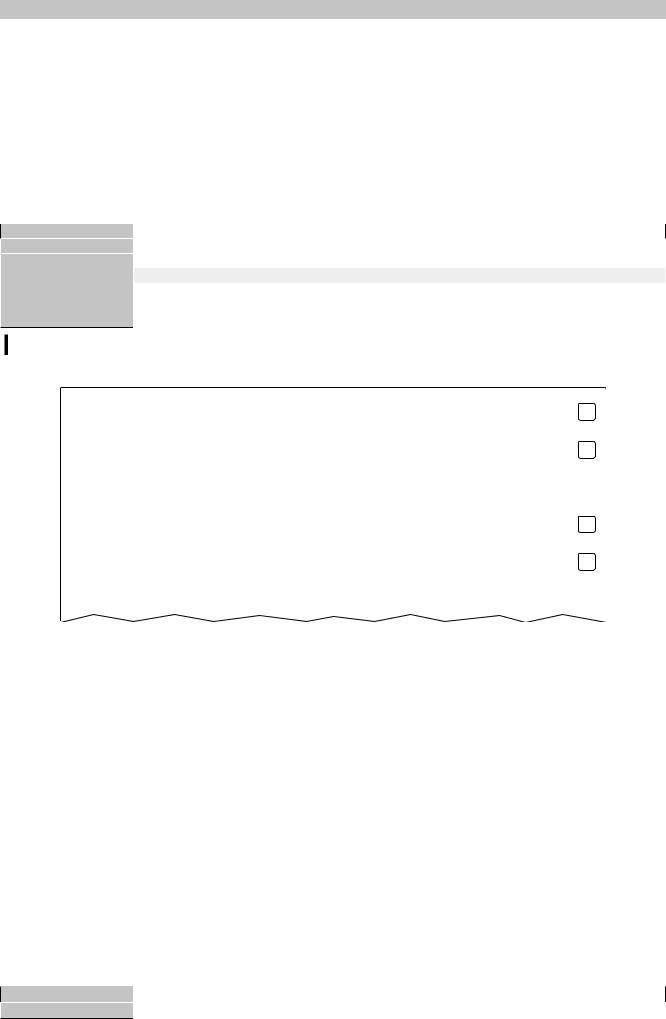
The following image shows the default settings for service page Storage:
Startup |
Allow access to USB memory via network |
|
|
|
|
|
|
||
Network |
|
|
|
|
|
|
|
|
|
Time |
Allow access to user memory via network |
|
|
|
Screen |
|
|
|
|
|
Password for network access |
|
|
|
Audio |
●●●●●●●● |
|||
|
Max. 100 characters |
|
|
|
Gesture |
Show password |
|
|
|
|
|
|
||
VNC |
|
|||
|
||||
|
|
|||
Web |
Encrypt password |
|||
|
||||
Storage |
Save storage password encrypted |
|||
|
||||
Update |
|
|
|
|
|
|
|
|
|
Backup & Reset |
|
|
|
|
|
|
|
|
|
Allow access to USB memory via network
Default setting: Disabled
If this option is enabled, access to the connected USB memory will be shared on the network.
Allow access to user memory via network
Default setting: Disabled
If this option is enabled, access to the internal user memory will be shared on the network.
Password for network access
Default setting: EMPTY (no password entered) Entry range: Max. 100 characters
The CIFS password for network sharing is configured here. This password is used share USB memory internal user memory.
The password is stored in configuration file PPT50Config.xml on the device.
Show password
Default setting: Disabled
Enabled |
The password is shown in the entry field as plain text. |
Disabled |
The password is hidden in the entry field using placeholder characters (●●●●●●). |
62 |
Power Panel T50 User's manual V1.22 - Translation of the original documentation |

Configuration • Service pages
Encrypt password
Default setting: Enabled
Enabled |
The password is stored on the device in encrypted form. |
Disabled |
The password is stored on the device as plain text. |
Power Panel T50 User's manual V1.22 - Translation of the original documentation |
63 |
Configuration • Service pages
5.1.11 Service page Update
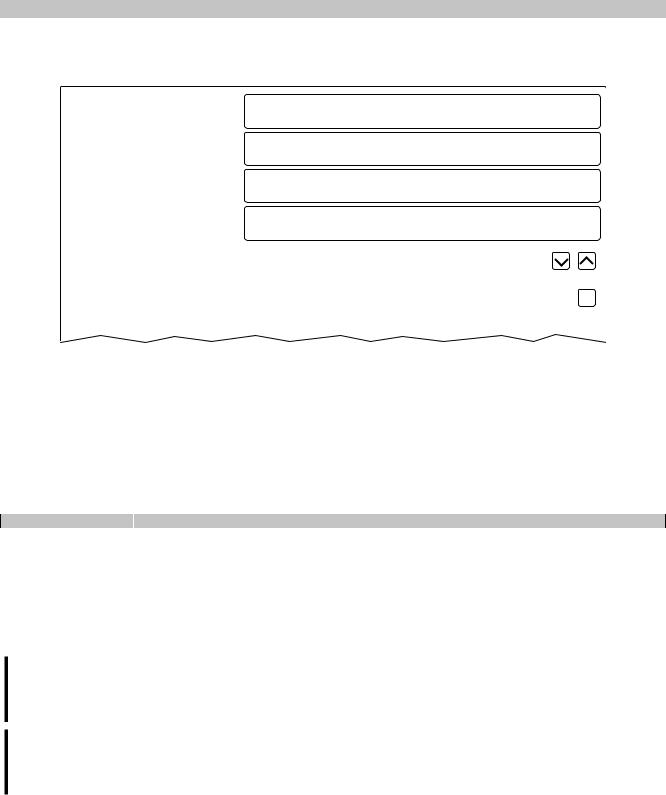
On this service page, various parts of the system can be updated from a range of different sources.
Startup |
Update settings / boot logo / system |
|
|
|
|
||
Network |
Press to update settings, boot logo, system |
|
|
|
|
|
|
Time |
Load settings from USB |
|
|
|
Press to load settings from USB flash drive |
|
|
Screen |
|
||
|
|
||
|
Load configuration from PLC |
|
|
Audio |
|
||
|
Press to load configuration from PLC |
|
|
Gesture |
Load boot logo / animation |
|
|
|
|
||
VNC |
|
||
Press to load boot logo / animation from USB flash drive |
|
||
Web |
Update server type |
TFTP |
|
|
|||
Storage |
Specify the update server type |
||
|
|||
|
|
||
Update |
Get Update Server from DHCP server |
||
Backup & Reset |
|
||
Security |
|
|
|
|
|
|
Update settings / boot logo / system (Button)
The Power Panel system is restarted as a minimized version of the system. When restarting, the following sources are searched in the specified order in order to find update files:
1The USB memory inserted in the Power Panel
For the update process, only 1 USB flash drive can be inserted in the Power Panel.
2The configured update server (see "Configuring the update server" on page 66)
The following update files are searched for:
File type |
Filename |
PPT image |
PPT50Image.img.gz, PPT50Image.md5, PPT50Image.img.gz.sig (see "PPT image" on page 77) |
System settings |
PPT50Config.xml (see "System settings" on page 77) |
Boot logo |
PPTLogo.bmp.gz (see "Boot logo" on page 77) |
Boot animation |
PPTLogoA.gif (see "Boot animation" on page 77) |
If valid update files are found during this search, they are loaded on the Power Panel and the system is restarted.
With this function, it is also possible to carry out a partial update if only a portion of the above-mentioned update files are on the USB flash drive.
Information:
If the current Power Panel settings should be retained, XML file PPT50Config.xml must not be on the source media.
Information:
It is generally only possible to install signed images on the Power Panel. If it is necessary to install an unsigned image, this must first be explicitly allowed beforehand on service page Security.
Load settings from USB (Button)
If no USB memory is connected, an appropriate message is shown.
If at least one USB memory device is connected, then a dialog box with USB interfaces IF3 and IF4 is shown. The name of the USB memory device is also shown to aid in selection. After the interface is selected, the settings will be loaded from XML file PPT50Config.xml.
They can be checked and modified on the service pages if necessary after loading and before saving the settings. Data is stored using functions on service page Save & Exit (see "Service page Save & Exit" on page 72).
64 |
Power Panel T50 User's manual V1.22 - Translation of the original documentation |
Configuration • Service pages
Load configuration from PLC (Button)
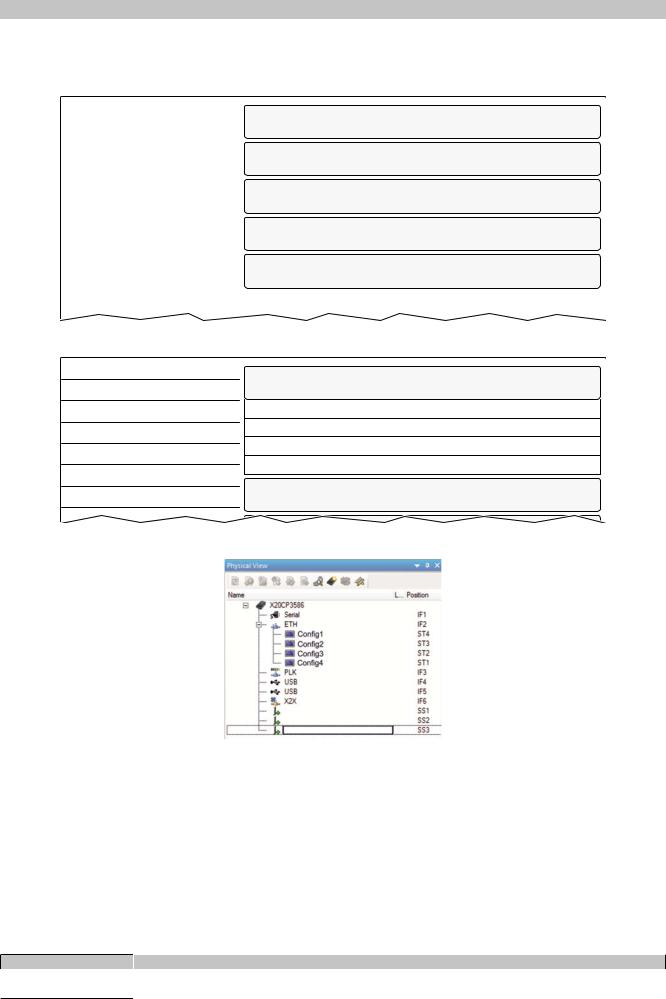
This function searches for controllers in the network that have a valid configuration for a Power Panel. After the search is complete (a few seconds), the discovered controllers are listed:
Startup |
Server 1 |
IP 10.0.0.1 |
|
|
|||
Network |
MAC: 00 60 65 10 12 01 |
||
|
|||
|
|
|
|
Time |
Server 2 |
IP 10.0.0.2 |
|
|
MAC: 00 60 65 10 12 02 |
||
Screen |
|||
|
|||
|
|
||
|
|
IP 10.0.0.3 |
|
Audio |
Server 3 |
||
|
|
MAC: 00 60 65 10 12 03 |
|
Gesture |
|
||
|
IP 10.0.0.4 |
||
|
Server 4 |
||
VNC |
|||
MAC: 00 60 65 10 12 04 |
|||
Web |
Server 5 |
IP 10.0.0.5 |
|
|
|||
Storage |
MAC: 00 60 65 10 12 05 |
||
|
|||
|
|
|
|
Update |
|
|
|
|
|
|
When selecting an entry, a list with the configurations of all Power Panels for the selected controller is displayed:
Startup
Network
Time
Screen
Audio
Gesture
VNC
Server 1 |
IP 10.0.0.1 |
|
MAC: 00 60 65 10 12 01 |
||
|
Config1
Config2
Config3
Config4
Server 2 |
IP 10.0.0.2 |
|
MAC: 00 60 65 10 12 02 |
||
|
The names of the listed configurations match the names of the configurations in Automation Studio:
If a configuration entry is selected, a dialog box appears asking for installation of the configuration to be confirmed. After downloading the data, the application goes to the Save & Exit service page and the data can be stored using a corresponding command. Alternatively, the user can check and – if necessary – modify the loaded settings on any of the service pages before saving.
Load boot logo / animation (Button)
If no USB memory is connected, an appropriate message is shown.
If at least one USB memory device is connected, then a dialog box with USB interfaces IF3 and IF4 is shown. The name of the USB memory device is also shown to aid in selection. After the interface is selected, the boot logo and/or the boot animation are loaded and stored on the Power Panel.
The following syntax must be used for filenames:
File type |
Filename |
Boot logo |
PPTLogo.bmp.gz (see "Boot logo" on page 77) |
Boot animation |
PPTLogoA.gif (see "Boot animation" on page 77) |
If a boot logo and/or a boot animation are already on the Power Panel, they will be overwritten.
Power Panel T50 User's manual V1.22 - Translation of the original documentation |
65 |