Материал: Панель АСКВ2 7016480
Commissioning
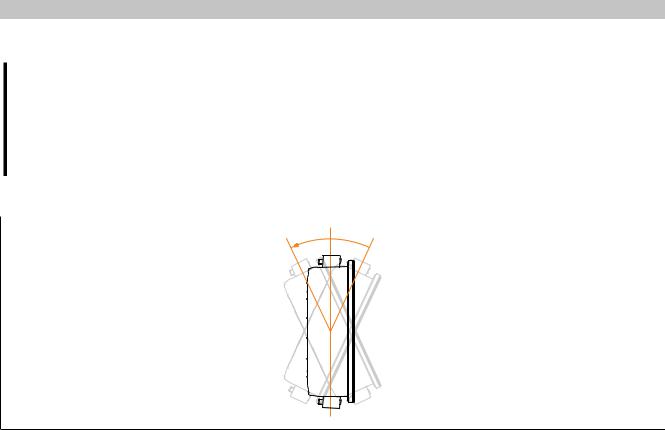
4.1.3 Mounting orientations
Important!
Possible damage to device!
•An ambient temperature that is too high can cause damage to the device or faulty behavior.
•For the maximum permissible ambient temperature, see the technical data for the respective device.
Vertical or tilted mounting orientation
25°
 25°
25°
The device can be operated without derating (see environmental conditions in the technical data).
Other mounting orientations (horizontal, inclined, etc.)
The device can be operated in all other mounting orientations with derating up to the maximum operating temperature minus 5°C (see environmental conditions in the technical data).
Power Panel T50 User's manual V1.22 - Translation of the original documentation |
41 |
Commissioning
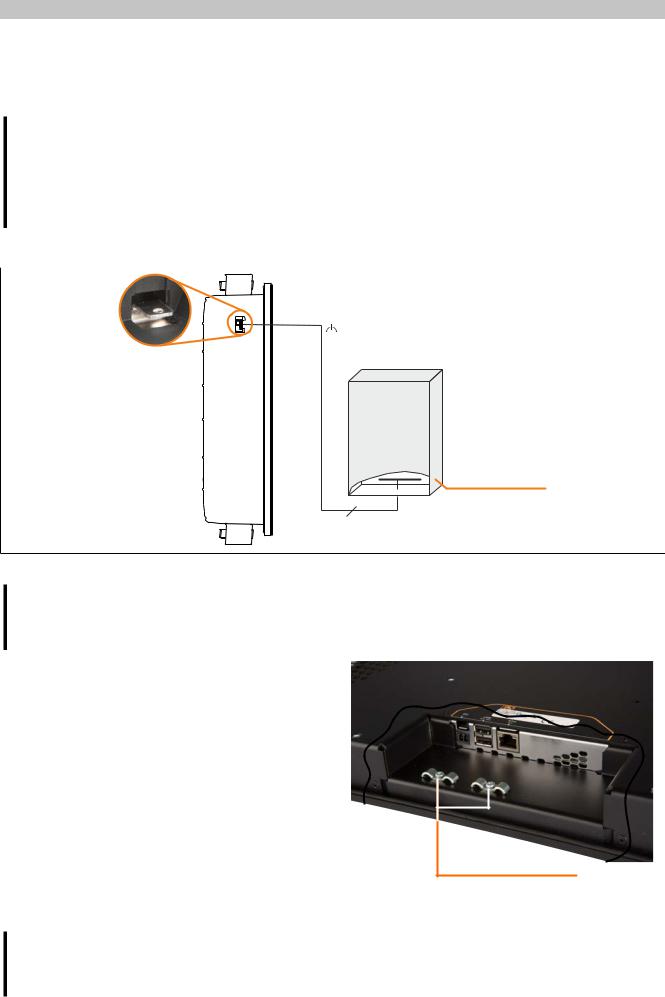
4.1.4 Grounding (functional ground)
Disturbances are discharged effectively via a grounding clip. For additional information about electromagnetic compatibility, see the INSTALLATIONS / EMC GUIDE user's manual (MAEMV-ENG on the B&R website www.br-automation.com).
Important!
Possible malfunction of interfaces and touch screen!
If functional ground is not present, faults in interface communication and touch screen functionality can occur.
The device is only permitted to be operated if properly grounded.
Grounding in the control cabinet
Ground connection
Control cabinet
Grounding rail
≥4 mm²
Figure: Grounding in the control cabinet
Important!
The ground connection of the device must be low impedance and connected to ground (e.g. grounding rail in the control cabinet) using a short path.
4.1.5 Securing the connecting cables
On Power Panel variants with 15.6" display size, cables can be relieved of tensile stress using the cable clamps provided on the back of the device.
For all other Power Panel variants, an appropriate method for securing the connecting cables in the vicinity of the device (control cabinet, machine, etc.) must be provided.
4.1.6 Requirements for the cables used
Cable clamps
Important!
In order to comply with the UL certification, use copper cables that are designed for operating temperature of >70 °C.
42 |
Power Panel T50 User's manual V1.22 - Translation of the original documentation |

Commissioning
4.2 Operating the Power Panel
The following input methods can be used individually or together to operate the Power Panel:
•Touch screen
•USB keyboard
•USB mouse
4.2.1Keyboard
Text can be entered using a USB keyboard or a virtual keyboard.
The virtual keyboard is shown as soon as a text input field (blinking text input cursor "|") has the focus.
q |
w |
e |
r |
t |
y |
u |
i |
o |
p |
|
a |
s |
d |
f |
g |
h |
j |
k |
l |
|
|
|
z |
x |
c |
v |
b |
n |
m |
|
||
|
||||||||||
▼ |
. |
|
|
|
|
, |
?123 |
← |
→ |
The [?123], [ABC], [1/2] and [2/2] keys can be used to open additional keyboard layouts:
1 |
2 |
3 |
4 |
5 |
6 |
7 |
8 |
9 |
0 |
|
* |
# |
+ |
- |
= |
( |
) |
" |
~ |
|
|
1/2 |
@ |
& |
/ |
\ |
' |
: |
; |
|
||
|
||||||||||
▼ |
. |
|
|
|
|
, |
ABC |
← |
→ |
|
|
|
|
|
|
|
|
|
|
|
|
€ |
£ |
$ |
¥ |
µ |
§ |
< |
> |
[ |
] |
|
° |
^ |
| |
_ |
{ |
} |
! |
? |
` |
|
|
2/2 |
´ |
% |
‰ |
∑ |
|
|
± |
|
||
|
||||||||||
▼ |
. |
|
|
|
|
, |
ABC |
← |
→ |
4.2.2 Mouse
The mouse cursor automatically appears if a USB mouse is connected to the Power Panel.
If the left and right mouse buttons are pressed simultaneously for more than 2 seconds, the Power Panel navigates to the service pages.
Power Panel T50 User's manual V1.22 - Translation of the original documentation |
43 |
Configuration • Service pages
5 Configuration
There are three ways to configure the Power Panel:
•Using the Power Panel service page (see "Service pages" on page 44)
•Using update:
Updating with Automation Studio and a USB flash drive
Updating with a file downloaded from website and a USB flash drive
Duplicating an existing setup using a USB flash drive
5.1Service pages
The T-Series Power Panels can be configured via the integrated service page. This service page can be opened in various ways:
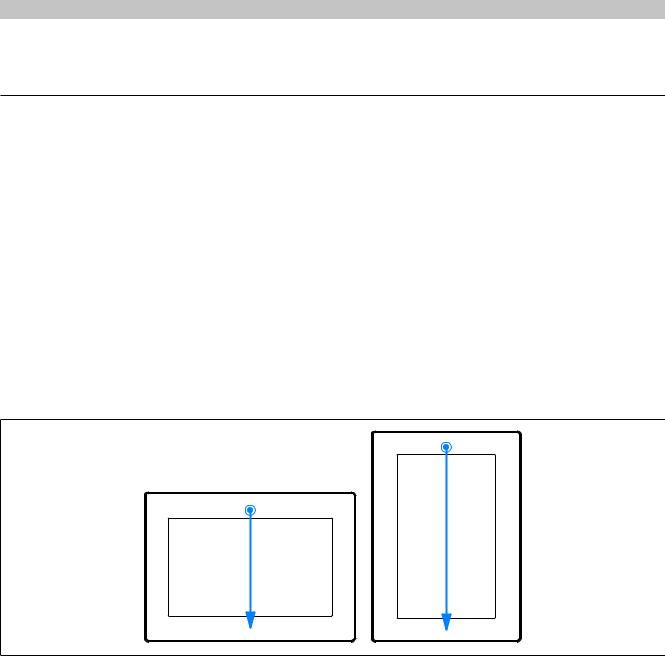
Opening the service page with a gesture
The service page can be opened with a gesture if this has been configured (see "Configuring the gesture" on page 57):
Gesture for opening the service page: Swipe a finger from the top center edge of the touch screen to the bottom over the entire touch area.
The setting for Screen rotation on service page Screen is important for the swipe direction.
Other ways to open the service page
The following options are also available to open the service page:
•By pressing the left and right buttons of the mouse simultaneously for at least 2 seconds if a USB mouse is connected.
•Opened automatically after restarting the Power Panel if the corresponding Start mode is configured on service page Startup (see service page "Startup" on page 49)
44 |
Power Panel T50 User's manual V1.22 - Translation of the original documentation |
Configuration • Service pages
Entering the service password
If a service password has been configured in the settings (see "Service page Security" on page 69), then this password must be entered each time the service pages are called before the respective service page is displayed.
Password
OK |
Cancel |
Update |
The service password must be entered in the corresponding text input field.
Button |
Description |
[OK] |
Confirming password entry |
[Cancel] |
Canceling password entry |
[Update] |
Pressing button "Update" causes the Power Panel to attempt an update. The |
|
Update settings / boot logo / system function is executed, which can also be called from service page |
|
Update (see "Service page Update" on page 64). |
|
If an update is found on a USB flash drive or on the network), then it will be downloaded and installed. |
|
In the next step, the Power Panel will be started in configured mode (see "Service page Startup" on |
|
page 49) regardless of whether an update is found or not. |
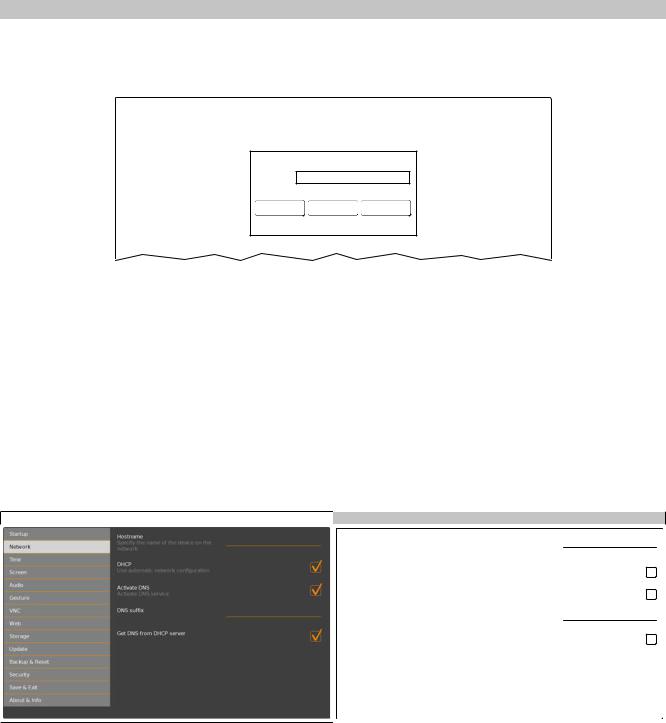
Representation of the service pages in this documentation
In this documentation, the service pages are not represented as original screenshots. For better readability, the service pages are displayed as black text on a white background:
Original Power Panel screenshot |
|
|
Representation in this documentation |
|
|
|
Startup |
|
Hostname |
|
|
|
|
|
|
|
Network |
|
Specify the name of the device on the |
|
|
|
|
network |
|
|
Time |
|
DHCP |
|
|
|
|
|
|
|
Screen |
|
|
|
|
|
Use automatic network configuration |
|
|
|
Audio |
|
Activate DNS |
|
|
|
|
|
|
|
Gesture |
|
Activate DNS service |
|
|
|
|
|
|
|
VNC |
|
DNS suffix |
|
|
Web |
|
|
|
|
|
|
Get DNS from DHCP server |
|
|
Storage |
|
|
|
|
|
|
|
|
|
Update |
|
|
|
|
|
|
|
|
|
Backup & Reset |
|
|
|
|
|
|
|
|
|
Security |
|
|
|
|
|
|
|
|
|
OPC UA |
|
|
|
|
|
|
|
|
|
Save & Exit |
|
|
|
|
|
|
|
|
|
About & Info |
|
|
|
|
|
|
|
Language of the service pages
As can be seen in the previous service page example, all of the content on the service pages for the Power Panel is generally in English.
Power Panel T50 User's manual V1.22 - Translation of the original documentation |
45 |