Материал: Панель АСКВ2 7016480
Configuration • Service pages
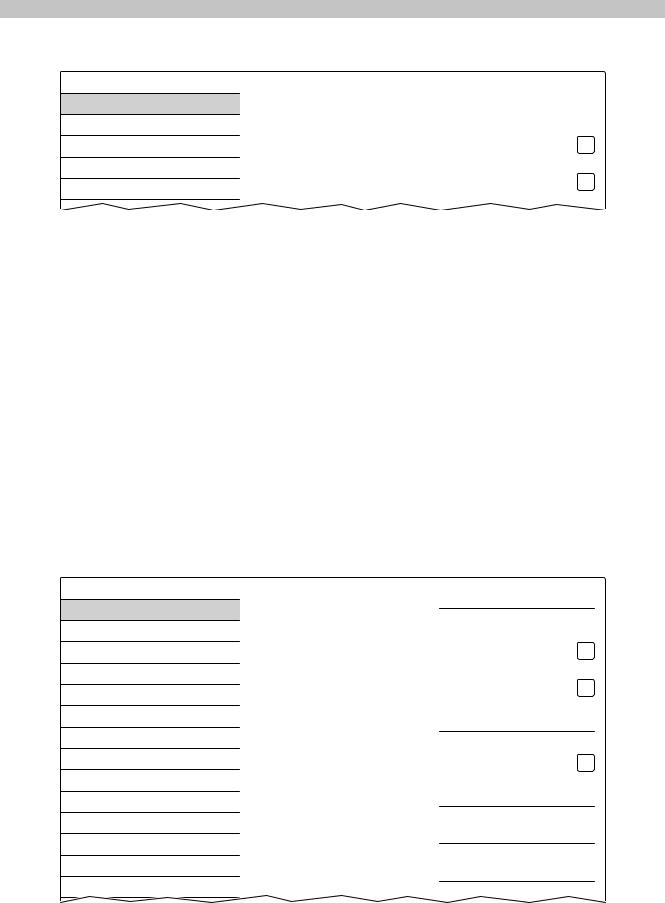
If this option is disabled, the device can only be accessed using an IP address assigned by the DHCP. In this case, options DNS suffix and Get DNS from DHCP server are hidden and not available:
Startup
Network
Time
Screen
Audio
Gesture
Hostname |
|
|
Specify the name of the device on the |
|
|
network |
|
|
DHCP |
||
Use automatic network configuration |
|
|
Activate DNS |
|
|
Activate DNS service |
|
|
DNS suffix
Default setting: EMPTY (no DNS suffix defined)
A DNS suffix is usually entered when a hostname is defined. The DNS suffix is specific to the network in which the device is being operated. Information about this must be obtained from the network administrator.
The hostname and the DNS suffix make up the full domain name (FQDN: Fully Qualified Domain Name) for the device:
hostname.dns-suffix
The full domain name could, for example, look like this:
Hostname: |
ppt-visualization-machine-01 |
DNS suffix: |
network-domain.com |
Fully qualified domain name |
ppt-visualization-machine-01.network-domain.com |
(FQDN): |
|
Get DNS from DHCP server
Default setting: Enabled
By default, the IP addresses for the DNS server are automatically obtained from the DHCP server.
If it be necessary to manually enter the IP addresses for the DNS server (without generally disabling DHCP), this can be done by disabling this option:
Startup
Network
Time
Screen
Audio
Gesture
VNC
Web
Storage
Update
Backup & Reset
Security
OPC UA
Save & Exit
About & Info
Hostname
Specify the name of the device on the network
DHCP
Use automatic network configuration
Activate DNS
Activate DNS service
DNS suffix
Get DNS from DHCP server
Primary DNS server
Secondary DNS server
Tertiary DNS server
Primary DNS server / Secondary DNS server / Tertiary DNS server
Default setting: EMPTY
The IP addresses for the DNS server.
The input option for the DNS server is only displayed if option Activate DNS is enabled.
Power Panel T50 User's manual V1.22 - Translation of the original documentation |
51 |
Configuration • Service pages
5.1.3.1 Network configuration without DHCP
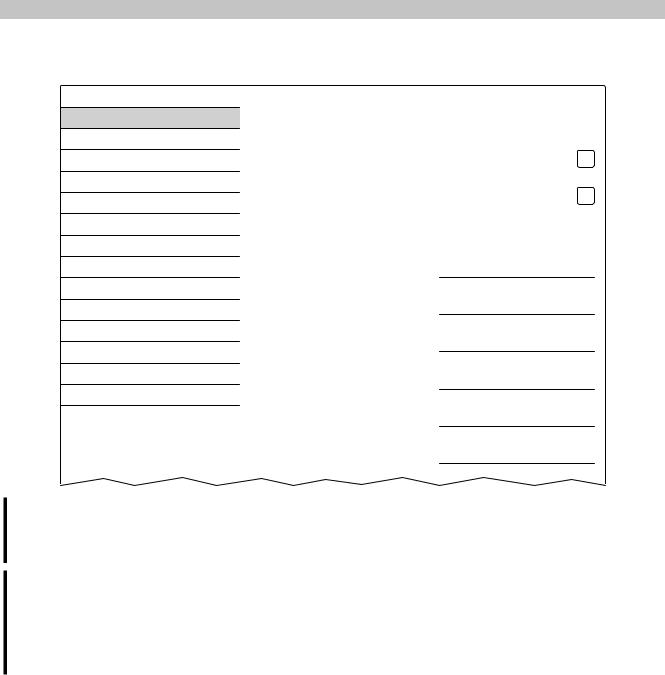
The entire network configuration can be completed manually by disabling option DHCP:
Startup
Network
Time
Screen
Audio
Gesture
VNC
Web
Storage
Update
Backup & Reset
Security
OPC UA
Save & Exit
About & Info
Hostname |
|
|
Specify the name of the device on the |
|
|
network |
|
|
DHCP |
|
|
Use automatic network configuration |
|
|
Activate DNS |
||
Activate DNS service |
|
|
DNS suffix |
|
|
|
|
|
IP address
Subnet mask
Default gateway
Primary DNS server
Secondary DNS server
Tertiary DNS server
Information:
The data required for manual network configuration can be obtained from the network or system administrator.
Information:
IP addresses are checked for validity when they are entered. Only characters that build a valid IP address can be entered.
If the IP address entered is incomplete or the network configuration is incorrect, error messages will be output when starting up the device.
Hostname / DHCP / Activate DNS / DNS suffix
Description of these options: See service page "Network" on page 50
IP address
Default setting: EMPTY
Here you have to enter the IP address of the Power Panel within the network.
Subnet mask / Default gateway
Default setting: EMPTY
Subnet mask and IP address of the default gateway.
Primary DNS server / Secondary DNS server / Tertiary DNS server
Default setting: EMPTY
The IP addresses for the DNS server.
The input option for the DNS server is only displayed if option Activate DNS is enabled.
52 |
Power Panel T50 User's manual V1.22 - Translation of the original documentation |
Configuration • Service pages
5.1.4 Service page Time
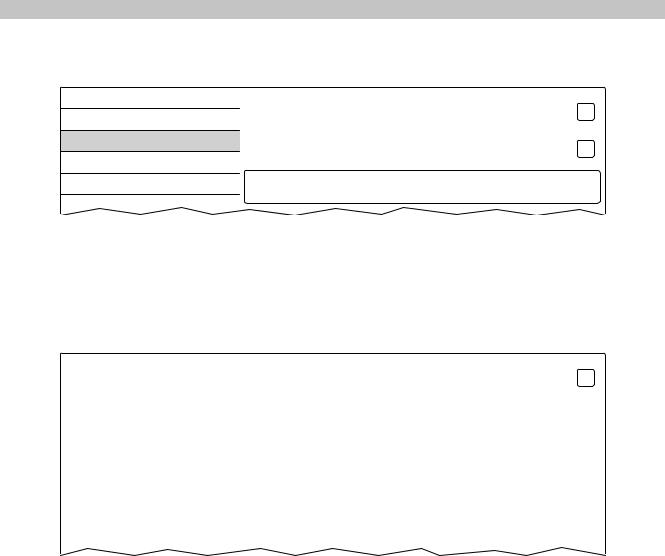
On this service page you can configure various settings for the time server and daylight saving time.
Startup |
NTP client |
|
Network |
||
|
||
Time |
Adjust clock for daylight saving |
|
Screen |
|
|
Audio |
Time synchronization |
|
Gesture |
(GMT) Dublin, Edinburgh, Lisbon, London |
|
|
NTP client
Default setting: Disabled
With this option, an NTP Client can be enabled on the Power Panel, which synchronizes the time on the Power Panel with a time server (NTP server).
After enabling the option, one to four NTP servers can be entered:
Startup |
Activate ntp client |
|
|
|
|||
Network |
|
||
Time |
NTP server 1 |
|
|
Screen |
NTP server 2 |
|
|
|
|
||
|
|
|
|
Audio |
|
|
|
|
|
|
|
Gesture |
NTP server 3 |
|
|
|
|
|
|
VNC |
|
|
|
|
|
|
|
|
|
|
|
Web |
NTP server 4 |
|
|
|
|
|
|
Storage |
|
|
|
|
|
|
|
|
|
|
|
Synchronization takes place cyclically. The interval between synchronization is increased once a certain degree of accuracy has been achieved on the system.
Adjust clock for daylight saving
Default setting: Disabled
If this option is enabled, time changes related to daylight savings time take place automatically.
Time synchronization
Default setting: (GMT) Dublin, Edinburgh, Lisbon, London
When making a selection (via touch or mouse click), a list of all time zones is shown and the appropriate one can be selected.
Power Panel T50 User's manual V1.22 - Translation of the original documentation |
53 |
Configuration • Service pages
5.1.5 Service page Screen
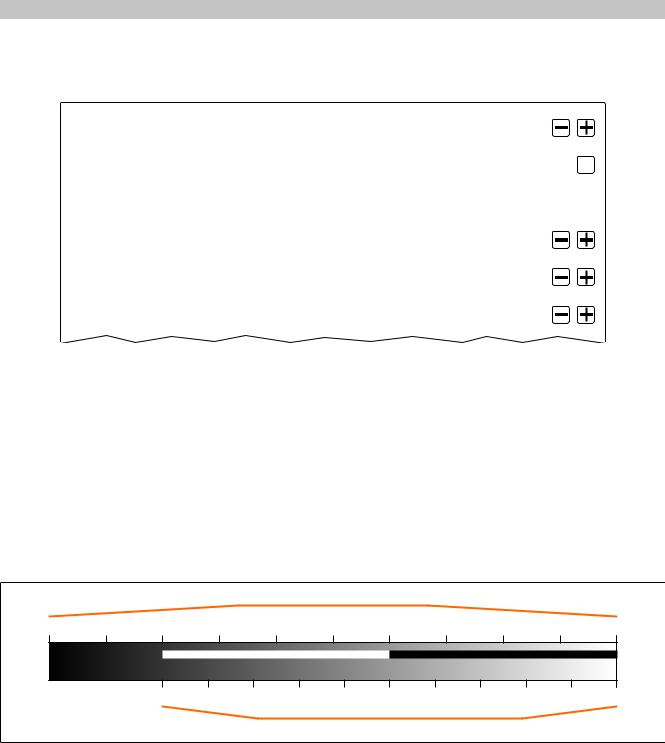
On this service page, some settings for the display can be changed. The following graphic shows the default settings:
Startup |
Display brightness |
|
|
||
Network |
0 to 100% |
|
|
|
|
Time |
Screensaver |
|
Screen |
|
|
Audio |
Screen rotation |
|
|
Specify the screen rotation angle |
|
Gesture |
Boot animation left pos |
|
|
||
VNC |
||
Animation offset from left side in pixel |
||
Web |
Boot animation top pos |
|
|
||
Storage |
Animation offset from top in pixel |
|
|
|
|
Update |
Boot animation delay |
|
|
Delay of boot animation in ms |
|
Backup & Reset |
||
|
||
|
|
50
0° 

0
0
0
Display brightness
Default setting: 50 Entry range: 0 to 100 Unit: %
Here, the current brightness of the display and the basic setting for the display are configured after restarting the device:
•Each change to a value on the service page directly and immediately affects the brightness of the display.
•The currently set value only becomes the default setting for the device once it is saved (see "Service page Save & Exit" on page 72).
Setting 0% on the service page corresponds to a residual brightness of 20%:
|
|
|
|
Brightness range of the display |
|
|
|
|
||||
0% |
10% |
20% |
30% |
|
40% |
50% |
60% |
70% |
80% |
|
90% |
100% |
|
|
|
Range from 0 to 50 |
|
Range from 50 to 100 |
|
||||||
|
|
0 |
10 |
20 |
30 |
40 |
50 |
60 |
70 |
80 |
90 |
100 |
|
|
|
|
|
Setting range on the service page screen |
|
|
|
||||
Brightness can also be controlled by the application (see "Adjusting display brightness" on page 79).
Screensaver
Default setting: Disabled
The options for the selected screen saver is described in the following section "Screensaver settings" on page 55.
Screen rotation
Default setting: 0°
Entry range: 0°, 90°, 180°, 270° (in 90° increments)
The angle of rotation of the display is set here. This setting affects how the screen content is output. After selection, the display content is rotated clockwise according to the specified angle.
54 |
Power Panel T50 User's manual V1.22 - Translation of the original documentation |
Configuration • Service pages
Settings for the boot animation
These settings are used to configure the position and time delay for the boot animation:
Boot animation left pos |
|
|
||
Default setting |
0 |
|
|
|
Entry range |
|
0 to 2048 1) |
||
Unit |
|
Pixels |
|
|
Function |
|
Definition of the distance from an existing boot animation to the left edge of the display. |
||
Boot animation top pos |
|
|
|
|
Default setting |
0 |
|
|
|
Entry range |
|
0 to 2048 1) |
||
Unit |
|
Pixels |
|
|
Function |
|
Definition of the distance from an existing boot animation to the top edge of the display. |
||
Boot animation delay |
|
|
|
|
Default setting |
0 |
|
|
|
Entry range |
|
0 to 1000 |
|
|
Unit |
|
ms (milliseconds) |
||
Function |
|
Delay in milliseconds between the individual images in the GIF animation. The individual values have |
||
|
|
the following effect: |
||
|
|
Value [ms] |
Description |
|
|
|
0 |
In this case, the delay defined in the GIF file will be used. |
|
|
|
|
If no delay is defined in the GIF file, 100 ms is used. |
|
|
|
>0 |
Applies the delay time as configured. |
|
|
|
It is possible that small values cannot be achieved because of performance limitation of the device. |
||
|
|
In this case, the animation is slower than defined by the value. |
||
Boot animation prerequisites/information |
||||
See "Boot animation" on page 77. |
|
|
||
1)Reasonable values range from 0 to the width/height of the screen. The screen width/height depends on the device being used and the configured
Screen rotation.
5.1.5.1 Screensaver settings
If option Screensaver is enabled, additional options are shown:
Startup |
Display brightness |
|
|
||
Network |
0 to 100% |
|
|
|
|
Time |
Screensaver |
|
Screen |
|
|
Audio |
Start screensaver after |
|
|
1 to 60 minutes |
|
Gesture |
Screensaver type |
|
|
||
VNC |
||
|
||
|
|
50
15
Black 

Start screensaver after
Default setting: 15 Entry range: 1 to 60 Unit: Minutes
If there is no touch screen activity for the specified duration, the screensaver is started. Touching the screen exits the screensaver and the last active screen contents are shown.
Screensaver type
Default setting: Backlight off
If the screensaver is started after a period of inactivity, the display goes into the selected mode:
Black |
The display is dark. The backlight remains on. |
Backlight off |
The display is dark. The backlight is switched off (result: lower power consumption). |
Power Panel T50 User's manual V1.22 - Translation of the original documentation |
55 |