Материал: Панель АСКВ2 7016480
Configuration • Service pages
Saving the settings
When editing the settings on the service pages, final version of the changed settings is not saved. The final version is saved when one of the following commands on service page Save & Exit is called:
•Save changes & exit
•Save changes
See section "Service page Save & Exit" on page 72.
Information:
Changes only become active after saving and exiting the service pages (command
Save changes & exit).
Information:
All settings on the service pages are saved on the Power Panel in XML file PPT50Config.xml. When backing up or restoring the panel settings, a file with this name is created or expected to be on the storage medium (see "Service page Backup & Reset" on page 68 and "Service page Update" on page 64).
46 |
Power Panel T50 User's manual V1.22 - Translation of the original documentation |
Input elements on the service pages
Startup |
1 |
Selection list |
|
|
|||
Network |
Click up/down button |
||
|
|
to select a different option. |
|
Time |
|
Selection list |
|
Screen |
|
|
|
|
|
Checkbox |
|
Audio |
|
||
|
|
Checkbox not enabled |
|
Gesture |
|
Checkbox |
|
|
|
||
VNC |
|
||
|
Checkbox enabled |
||
Web |
2 |
UpDown input field |
|
Storage |
|
+/- buttons for range of values |
|
|
|
|
|
Update |
|
Text field |
|
|
|
Text input... |
|
Backup & Reset |
|||
|
|||
|
|
Text field |
|
Security |
|
||
|
|
Multiple text input... |
|
Save & Exit |
|
Text field |
|
|
|
||
About & Info |
|
||
|
Password entry |
||
Button A
Description of button A…
Button B
Description of button B…
Configuration • Service pages
Option 1
3
Option C 

4
5
50 |
6 |
Enter text here |
7 |
|
Hostname |
8 |
|
|
●●●●●●●● |
9 |
|
|
|
10 |
|
|
|
|
|
11 |
|
|
|
|
|
|
|
|
||||
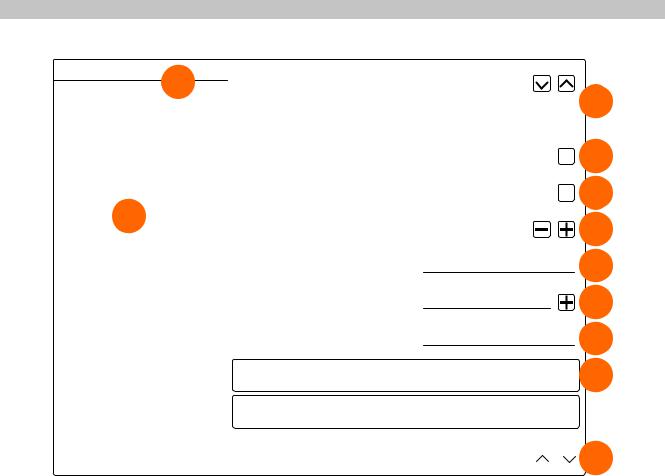
1 |
Menu for selecting individual service pages "Startup", "Network", "About & Info", etc. |
||||
2 |
The active or selected service page is marked in the menu using a different background color. |
||||
3 |
The selection list indicates the selected option. Pressing the up/down arrows moves between the available |
||||
|
options. |
||||
4 |
Checkbox not activated. |
||||
5 |
Checkbox activated. |
||||
6 |
UpDown input field for entering values within a certain range. The value can be increased/decreased using |
||||
|
the "-" or "+" symbols. The value can also be changed directly using the keyboard. |
||||
7 |
Text field where text can be entered with the keyboard. |
||||
8 |
Text field where text can be entered with the keyboard. The "+" symbol can be used to add the entered |
||||
|
text to a text list. |
||||
9 |
Text field for entering a password. The password will be displayed as plain text or wildcard characters |
||||
|
(●●●●●●) depending on the setting. |
||||
10 |
Button that can be used to trigger a specific function. Under the short title, a more detailed description of |
||||
|
the function is displayed as gray text. |
||||
11 |
If the service page contains more elements than fit on the display, it is possible to scroll through the content |
||||
|
using the up/down buttons. |
||||
To simplify operation, some text fields are enlarged during input (increased readability). The descriptive text to the left of the text field is hidden during this (covered up by the text field).
Power Panel T50 User's manual V1.22 - Translation of the original documentation |
47 |
Configuration • Service pages
5.1.1 Overview
The following service pages are available:
Menu for the service pages |
Menu option (English) |
Description |
||||
|
Startup |
Startup |
Settings that take affect when restarting the Power Panel |
|||
|
|
|
|
|
Network |
Settings for the Ethernet network |
|
Network |
|||||
|
Time |
Time settings (time server, daylight savings time) |
||||
|
|
|
|
|
||
|
Time |
|||||
|
Screen |
Screen settings (screensaver, rotation, etc.) |
||||
|
|
|
|
|
||
|
Screen |
|||||
|
Audio |
Buzzer settings |
||||
|
|
|
|
|
||
|
Audio |
|||||
|
Gesture |
Enables/Disables a gesture for opening the service page |
||||
|
|
|
|
|
||
|
Gesture |
|||||
|
VNC |
Settings for the VNC client on Power Panel |
||||
|
|
|
|
|
||
|
VNC |
|||||
|
Web |
Settings for the web browser |
||||
|
|
|
|
|
||
|
Web |
|||||
|
Storage |
Settings for accessing memory (USB flash memory, user memory) |
||||
|
|
|
|
|
||
|
Storage |
|||||
|
Update |
Updates the Power Panel (manual) |
||||
|
|
|
|
|
||
|
Update |
|||||
|
Backup & Reset |
Backing up Power Panel settings or resetting the Power Panel to factory |
||||
|
|
|
|
|
||
|
Backup & Reset |
|
settings |
|||
|
|
|
|
|
|
|
|
Security |
|
Security |
Security settings (password query when opening the service page) |
||
|
OPC UA |
|
OPC UA |
Settings for the OPC UA server of the Power Panel |
||
|
Save & Exit |
|
Save & Exit |
Saving the Power Panel settings and closing/exiting the service page |
||
|
About & Info |
About & Info |
Information about the Power Panel (PPT system version, licenses for the |
|||
|
|
|
|
|
|
software being used) |
|
|
|
|
|
|
|
48 |
Power Panel T50 User's manual V1.22 - Translation of the original documentation |
Configuration • Service pages
5.1.2 Service page Startup
Startup |
Start mode |
|
|
Network |
Specify the startup application |
Time |
|
Service page 

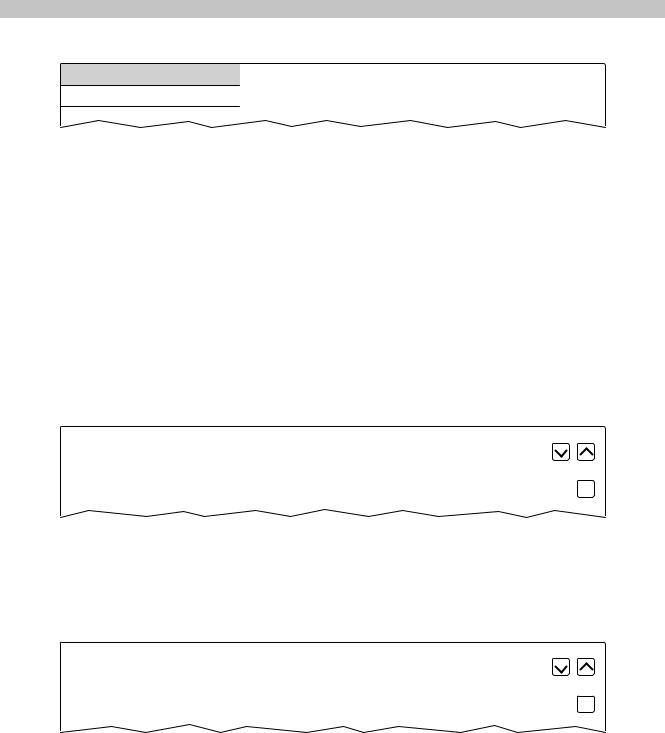
The start mode is configured the service page Startup and determines how the Power Panel behaves after being switched on. The Power Panel is started in one of the following modes (Start mode) in accordance with this setting:
•Service page (Default setting)
•VNC
•Web
Start mode Service page (Default setting)
This setting is typically used during the development phase of an application because the service page is opened immediately after every Power Panel restart.
Start mode VNC
In Start mode, the Power Panel is started as a VNC client in order to display an HMI application that is available on a VNC server.
In Start mode VNC, option Show boot logo is also used to configure if the system boot logo and boot animation should be displayed when establishing a connection to the VNC server:
Startup |
Start mode |
VNC |
|
Network |
Specify the startup application |
||
|
|||
|
|
|
|
Time |
Show boot logo |
|
|
|
Use boot logo / animation as VNC load screen |
|
|
Screen |
|
||
|
|
||
|
|
|
Start mode Web
In Start mode Web, a web browser that displays web server content is started immediately after restarting the Power Panel.
In Start mode Web, option Show boot logo is also used to configure if the system boot logo and boot animation should be displayed when establishing a connection to the web server:
Startup |
Start mode |
Web |
|
Network |
Specify the startup application |
||
|
|||
|
|
|
|
Time |
Show boot logo |
|
|
|
Use boot logo / animation as web load screen |
|
|
Screen |
|
||
|
|
||
|
|
|
Boot logo or boot animation
Requirements and information about the boot logo and boot animation can be found in the following sections:
•"Boot logo" on page 77
•"Boot animation" on page 77
Power Panel T50 User's manual V1.22 - Translation of the original documentation |
49 |
Configuration • Service pages
5.1.3 Service page Network
The default settings for the service page Network are as follows:
Startup
Network
Time
Screen
Audio
Gesture
VNC
Web
Storage
Update
Information:
Hostname
Specify the name of the device on the network
DHCP
Use automatic network configuration
Activate DNS
Activate DNS service
DNS suffix
Get DNS from DHCP server
Network configuration changes do not require the Power Panel to be rebooted and are applied by the system and processed immediately after saving the settings and exiting the service pages (see "Service page Save & Exit" on page 72).
Hostname
Default setting: EMPTY (no hostname defined)
The Power Panel is identified in the network using its IP address or hostname. If a hostname is entered here, the Power Panel can be identified in the network using this name, which allows it to be accessed (e.g. by Automation Studio).
Important information:
•The hostname must be unique in the network.
•The name can have a maximum length of 64 characters.
DHCP
Default setting: Enabled
When the Dynamic Host Configuration Protocol (DHCP) is enabled, the network configuration is automatically taken from the DHCP server and assigned to the Power Panel; otherwise, it must be entered manually (e.g. the IP address of the device, the IP address of the gateway, etc.).
For information about manual network configuration: see "Network configuration without DHCP" on page 52
Activate DNS1)
Default setting: Enabled
DNS usage of the device (DNS client) can be enabled or disabled with this option.
If a hostname is entered in VNC or web mode, this option must be enabled so the hostname of the VNC or web server can be deactivated and the associated IP address can be obtained from the DNS server.
1)For DNS functionality to be used, appropriate infrastructure must exist in the network. For more information, please contact your network administrator.
50 |
Power Panel T50 User's manual V1.22 - Translation of the original documentation |