Материал: Панель АСКВ2 7016480
Configuration • Service pages
5.1.6 Service page Audio
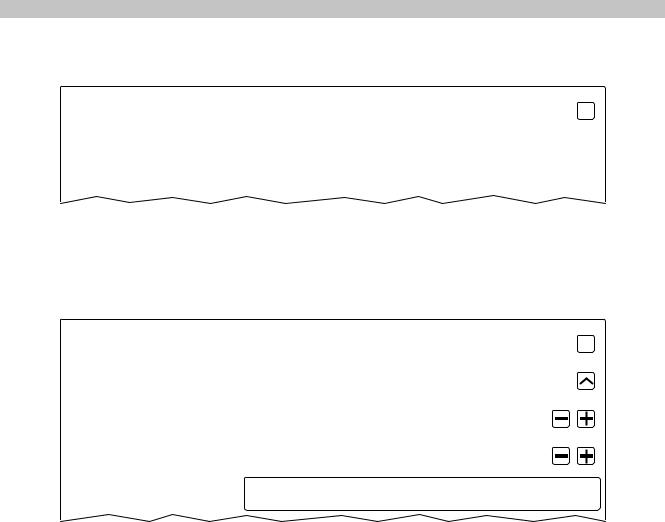
On this service page, an audio signal can be configured for a touch gesture or controlled by an application.
Startup |
Buzzer |
|
|
Network |
|
|
|
Time |
|
|
|
Screen |
|
|
|
Audio |
|
|
|
Buzzer
Default setting: Disabled
If this option is disabled, an audio signal is not output for a touch gesture on the Power Panel. The following settings can be made when Buzzer is enabled:
Startup |
Buzzer |
|
|
||
Network |
|
|
|
|
|
Time |
Buzzer source |
|
Screen |
|
|
|
Buzzer frequency |
|
Audio |
||
|
40 to 15000 Hz |
|
Gesture |
Buzzer duration |
|
|
||
VNC |
||
10 to 500ms |
||
Web |
Test buzzer |
|
|
||
Storage |
Press to test |
|
|
|
Touch 
4000
10
Buzzer source
Default setting: Touch screen
The following options are available for triggering a buzzer:
Touch |
In VNC and Web mode, an audio signal is output for each touch gesture. This takes place independent |
|
of the application controlled by the Power Panel operating system. |
App |
The RFB extension and corresponding library can be used to allow the application to trigger the audio |
|
signal. |
|
See "Audio signal output" on page 79. |
Buzzer frequency
Default setting: 4000
Entry range: 10 to 15000
Unit: Hz
This setting is used to configure the frequency of the generated audio signal.
Buzzer duration
Default setting: 10
Entry range: 10 to 500
Unit: ms (milliseconds)
This setting is used to configure the duration of the generated audio signal.
Test buzzer (Button)
Function: Testing the buzzer (sound is produced).
56 |
Power Panel T50 User's manual V1.22 - Translation of the original documentation |
Configuration • Service pages
5.1.7 Service page Gesture
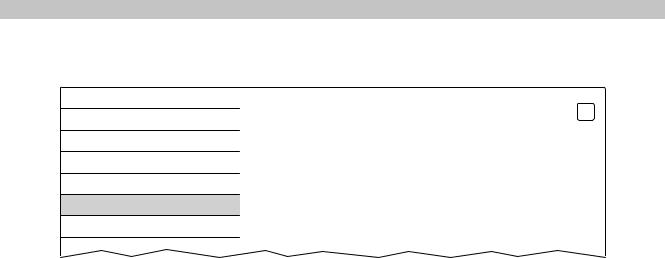
The settings on this service page configure the gesture for opening the service page:
Startup |
Open service page |
|
Network |
||
|
||
Time |
|
|
Screen |
|
|
Audio |
|
|
Gesture |
|
|
VNC |
|
|
Web |
|
Opens the service page with a gesture if option Open service page is enabled:
• See "Opening the service page with a gesture" on page 44.
Open service page
Default setting: Enabled
Enabled |
In VNC/Web mode, the service page can be opened using this gesture. |
|
Disabled |
In VNC/Web mode, the service page cannot be opened using this gesture. |
|
|
|
Information: |
|
|
|
|
|
A mouse must be connected in order to open the service page in VNC/web mode (see |
|
|
"Mouse" on page 43). |
|
|
|
Power Panel T50 User's manual V1.22 - Translation of the original documentation |
57 |
Configuration • Service pages
5.1.8 Service page VNC
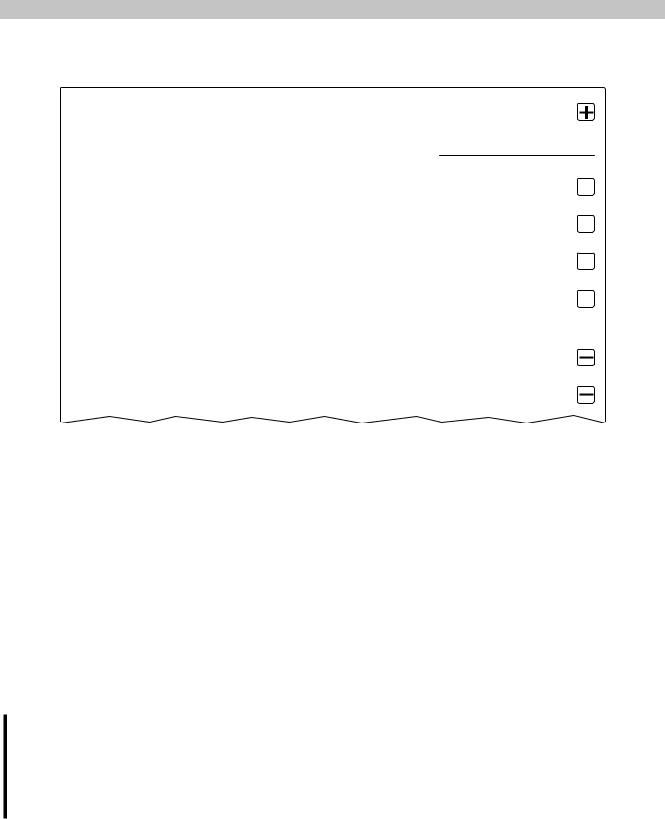
In order to use the Power Panel as a VNC client, some settings are necessary:
Startup |
Server |
vncserverX |
|
|
|||
Network |
IP address or hostname |
||
|
|||
|
|
|
|
Time |
Password |
●●●●●●●● |
|
|
Max. 100 characters |
||
Screen |
|||
|
|||
|
|
||
|
Show password |
|
|
Audio |
|
||
|
|
|
|
Gesture |
Encrypt password |
|
|
|
|
||
VNC |
|
||
Save VNC password encrypted |
|
||
Web |
Use RFB extension |
|
|
|
|
||
Storage |
|
|
|
|
|
|
|
Update |
Enable local window scaling |
|
|
Backup & Reset |
|
|
|
|
|
|
|
Security |
|
|
|
|
vncserver1 |
|
|
OPC UA |
|
||
|
|
|
|
Save & Exit |
vncserver2 |
|
|
|
|
||
About & Info |
|
||
|
|
||
|
|
|
Server
Default setting: EMPTY (no server entered or selected)
In order to use the Power Panel as a VNC client, a hostname or IP address for the VNC server must be specified.
It is possible here to enter multiple servers in a list. Entering the hostname or IP address and then clicking on the [+] icon) adds the specified server in the list at the end of this services page (see "vncserver1" and "vncserver2" in the previous image).
To use a specific VNC server from this list, it must be selected in the server list (via touch gesture or mouse click). The currently selected VNC server is displayed in the input field Server.
By default, port 5900 is used to establish a connection.
If the VNC-based HMI application is available on a different port, the port number must be specified explicitly together with the IP address or hostname:
Syntax |
Example |
Description |
IP address:Port |
10.23.19.48:5907 |
A VNC connection to IP address 10.23.19.48 is established on port 5907. |
Hostname:Port |
vncserver1:5908 |
A VNC connection to the host vncserver1 is established on port 5908. |
Information:
If the specified IP address is incomplete or a VNC server does not exist for the IP address or the specified hostname, a message is output indicating that a network connection could not be established in VNC mode.
The error message is only output if option Show boot logo is disabled start mode VNC.
Password
Default setting: EMPTY (no password entered) Entry range: Max. 100 characters
Note: Only one password can be entered, which is only used for the currently selected VNC server.
If a password has been entered, then the VNC client (Power Panel) is connected to the VNC server without an additional password query.
If no password has been entered, then the password will be queried each time a connection to the VNC server is established.
The password is stored in configuration file PPT50Config.xml on the device.
58 |
Power Panel T50 User's manual V1.22 - Translation of the original documentation |
Configuration • Service pages
Show password
Default setting: Disabled
Enabled |
The password is shown in the entry field as plain text. |
Disabled |
The password is hidden in the entry field using placeholder characters (●●●●●●). |
Encrypt password
Default setting: Enabled
Enabled |
The password is stored on the device in encrypted form. |
Disabled |
The password is stored on the device as plain text. |
Use RFB extension
Default setting: Disabled
With the RFB extension enabled, a B&R VNC server (VNC-based HMI application) can query data from the VNC client and execute a variety of functions.
See "RFB extension" on page 78.
Enable local window scaling
Default setting: Disabled
Enabled |
The VNC application is scaled to the Power Panel screen size. |
Disabled |
The VNC application is shown on the Power Panel screen in its original size. |
Information:
Enabling option Enable local window scaling reduces the performance of the Power Panel because of increased demands on processing power.
Power Panel T50 User's manual V1.22 - Translation of the original documentation |
59 |
Configuration • Service pages
5.1.9 Service page Web
The Power Panel can be configured as a web client on this service page. In this case, a web browser is operated in full screen mode and an HMI application, or any other application that runs on a web server (e.g. mapp View), is displayed in the browser.
The following features are not supported:
•Java
•Flash
The web browser provides full JavaScript support!
The following image shows service page Web with the default settings:
Startup |
Server |
webserverX |
|
|
|||
Network |
IP address or hostname |
||
|
|||
Time |
Virtual keyboard |
||
Screen |
Show virtual keyboard in web |
||
|
|||
Audio |
|
|
|
Gesture |
webserver1 |
|
|
VNC |
webserver2 |
|
|
Web |
|
||
|
|
||
Storage |
|
|
|
Update |
|
|
Server
Default setting: EMPTY (no server entered or selected)
In order to use the Power Panel as a web client, a hostname or IP address for the VNC server must be specified.
It is possible here to enter multiple servers in a list. Entering the hostname or IP address and then clicking on the [+] icon) adds the specified server in the list at the end of this services page (see "webserver1" and "webserver2" in the previous image).
To use a specific web server from this list, it must be selected in the server list (via touch gesture or mouse click). The currently selected web server is displayed in input field Server.
If a port number is not specified together with the server, port 80 is used by default.
If the web server is available on a different port, the port must be specified explicitly together with the IP address or hostname:
Syntax |
Example |
Description |
IP address:Port |
10.23.20.17:8080 |
A connection to IP address 10.23.20.17 is established on port 8080. |
Hostname:Port |
webserver1:8081 |
A connection to the host webserver1 is established on port 8081. |
Information:
If the specified IP address is incomplete or a web server does not exist for the IP address or the specified hostname, only the boot logo (if enabled) or the default animation for the web browser will be shown when establishing a connection to the web server.
60 |
Power Panel T50 User's manual V1.22 - Translation of the original documentation |